
Client Change Request Pack With AI (Scope Creep Playbook)
Stop unpaid scope creep: capture client asks, draft impact with ChatGPT, send a one-page Google Doc for approval via Gmail, then update scope and invoice.
By DoAIWork · October 10, 2026

When “just a small tweak” becomes unpaid scope creep
If you deliver client work for a living, you already know the pattern: a friendly Slack message, a quick call, or an email that starts with “While you’re in there…” and ends with three new features, a new integration, and a deadline that did not move. Without a lightweight change request pack, those moments quietly eat your margin.
This guide gives freelancers and small agencies a repeatable playbook: capture the ask, quantify impact with AI, send a one-page approval doc, and only then start the extra work. You will use ChatGPT for structured drafts, Google Docs as the shared record, and Gmail for the client-facing send—no fancy PM suite required.
If you are early in the client lifecycle, pair this with our discovery scope doc and project handoff pack so scope stays clear from first call to final delivery.
What belongs in a change request (and what does not)
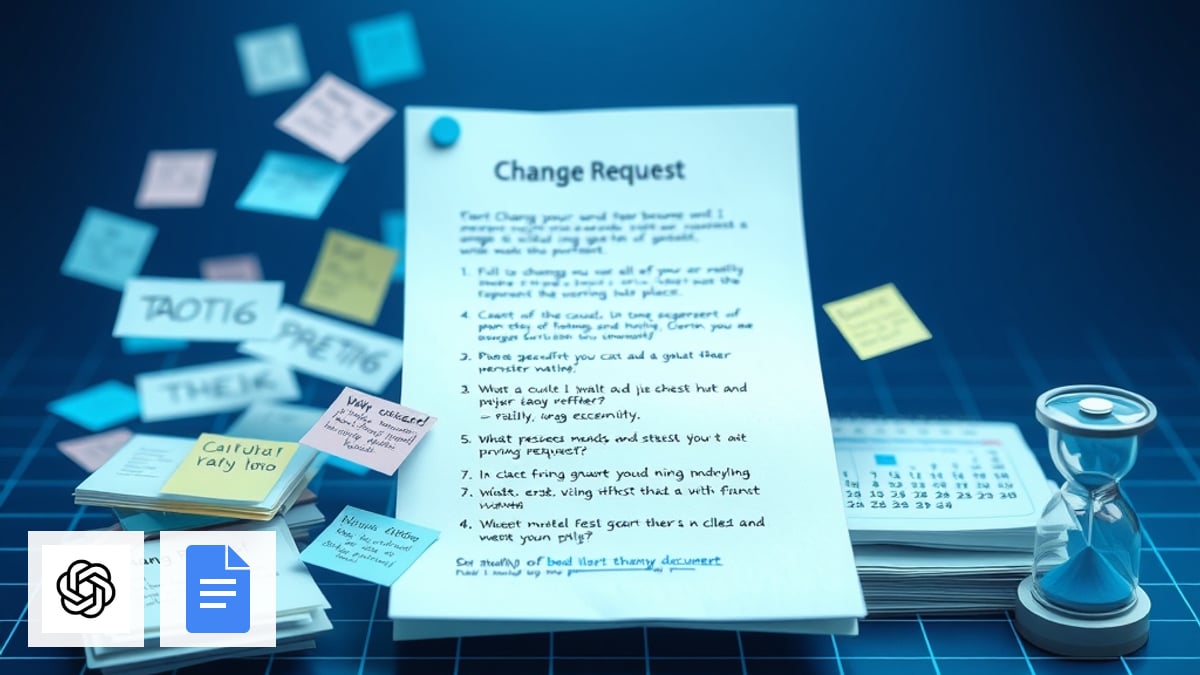
A change request is not a guilt trip. It is a short, neutral record that answers four questions for your client:
- What they asked for (quoted or paraphrased in their words).
- Why it was not in the original scope (one sentence linking to the signed SOW or proposal).
- Impact on timeline, budget, and dependencies (hours, fee, risk).
- Decision they need to make (approve, defer, or descope).
Keep the doc to one page. Long change orders feel like legal traps; one page feels like professionalism.
The five-step workflow
1. Pause and capture before you build
When a new ask lands, resist coding or designing first. Reply with a holding message:
Thanks—I'll log this as a change request and send you impact on timeline and fee by [date]. I won't start the extra work until you approve.
Paste the client’s message, call notes, or Loom summary into a Google Doc titled CR-YYYYMMDD – [Client] – [Short title]. Number every change request (CR-001, CR-002) so email threads stay searchable.
2. Use AI to draft the impact summary
Open ChatGPT with a project or custom instruction that knows your rate and typical task sizes. Paste the raw ask plus a bullet list of what was in scope from your original proposal.
Prompt template (copy and edit):
You are helping a freelancer write a client-facing change request summary.

Original scope (bullets):
- [paste from proposal/SOW]

New client request (their words):
- [paste]

Deliver:
1) Neutral description of the requested change (2–3 sentences)
2) Assumptions you need confirmed (bullets)
3) Impact: estimated hours [range], calendar slip [days], technical risks
4) Recommended options: (A) approve as CR with fee $X, (B) defer to phase 2, (C) descope to MVP
Tone: calm, collaborative, no blame. No legal language.
Review every number yourself. AI is fast at structure; you own the estimate.
3. Build the one-page Google Doc
Use this skeleton in Google Docs (headings only—your client fills in blanks on approval):
- Change request ID & date
- Requested by
- Description of change
- Out of scope reference (link to original scope doc)
- Impact table: hours | fee | new delivery date | blockers
- Approval (name, date, “Approved / Declined”)
Share with “commenter” access until they approve; switch to “viewer” after sign-off.
4. Send the Gmail approval email
Keep the email shorter than the doc. Link the Doc, restate the decision deadline, and clarify that work starts after written approval.
Email template:
Subject: Change request CR-00X – [project] – approval needed

Hi [Name],

I've logged your request to [one-line summary] as change request CR-00X.

Scope doc: [link to original SOW]
Change request (impact + fee): [link to Google Doc]

Summary:
- Estimated effort: [X–Y hours]
- Fee: [$ or € amount]
- Effect on delivery date: [date shift or "none"]

Please reply "approved" on the doc or by email by [date]. I won't start this work until then so we stay aligned on budget and timeline.

Thanks,
[You]
Send from the same Gmail thread as the original project when possible so context stays intact.
5. After approval: update scope and invoice path
When the client approves, add a line to your master scope doc (“CR-003 approved on [date] – [fee]”) and update your task board. Invoice the CR as a separate line item or milestone—do not bury it inside “miscellaneous.”
If they decline, thank them, offer a phased option, and do not silently deliver the extra work “to be nice.” That is how fixed-price projects die.
Common mistakes (and fixes)
| Mistake | Fix |
|---|---|
| Verbal “sure, easy” yes | Default to the holding message + written CR |
| AI estimates taken as gospel | Cross-check against your last three similar tasks |
| One giant CR with ten asks | Split into CR-001, CR-002 so clients can approve in parts |
| No link back to original scope | Always paste the SOW bullet you are amending |
When to use Make or automation
This playbook is intentionally manual-first: most CR volume does not justify automation until you have steady retainer clients. If you already use Make for ops, a optional Friday reminder to “close open CRs” is enough—do not auto-send fees without human review.
Quick checklist before you hit send
- Client words captured verbatim in the Doc
- Hours and fee match your rate card
- New delivery date is realistic (includes your other clients)
- Original scope doc linked
- Approval deadline stated in email
- You did not start the extra work early
Bottom line
Scope creep is not a character flaw on either side—it is missing process. A change request pack turns awkward negotiations into a two-minute read and a clear yes/no. Use AI to draft faster, Google Docs to stay transparent, and Gmail to keep the paper trail where clients already live.
Browse more client ops guides in Guides.
Related guides

Build a Client Project Handoff Pack With AI in One Afternoon
When the build is done, clients still need a calm closeout: deliverables, access, how-to-run notes, and support boundaries. Use ChatGPT and Google Docs to assemble a handoff pack you send yourself via Gmail.
Read guide
Build a Client Kickoff Pack With AI in One Afternoon
You won the project—now turn the signed proposal and intake answers into a welcome email, kickoff agenda, and shared checklist clients actually read. ChatGPT drafts; you send.
Read guide
Write a Client Proposal With AI: Structure, Pricing, and Your Voice
Turn a messy brief into a proposal clients actually read: capture inputs once, let ChatGPT draft sections you edit, price honestly in Google Docs, and send from Gmail without sounding like a template mill.
Read guide