
AI Product Photos Without a Studio: Phone to Marketplace
Phone-to-listing product photos with AI: remove backgrounds, Amazon RGB 255 white mains, Photoroom vs Canva, and mistakes that mislead buyers.
By DoAIWork Editorial · October 5, 2026
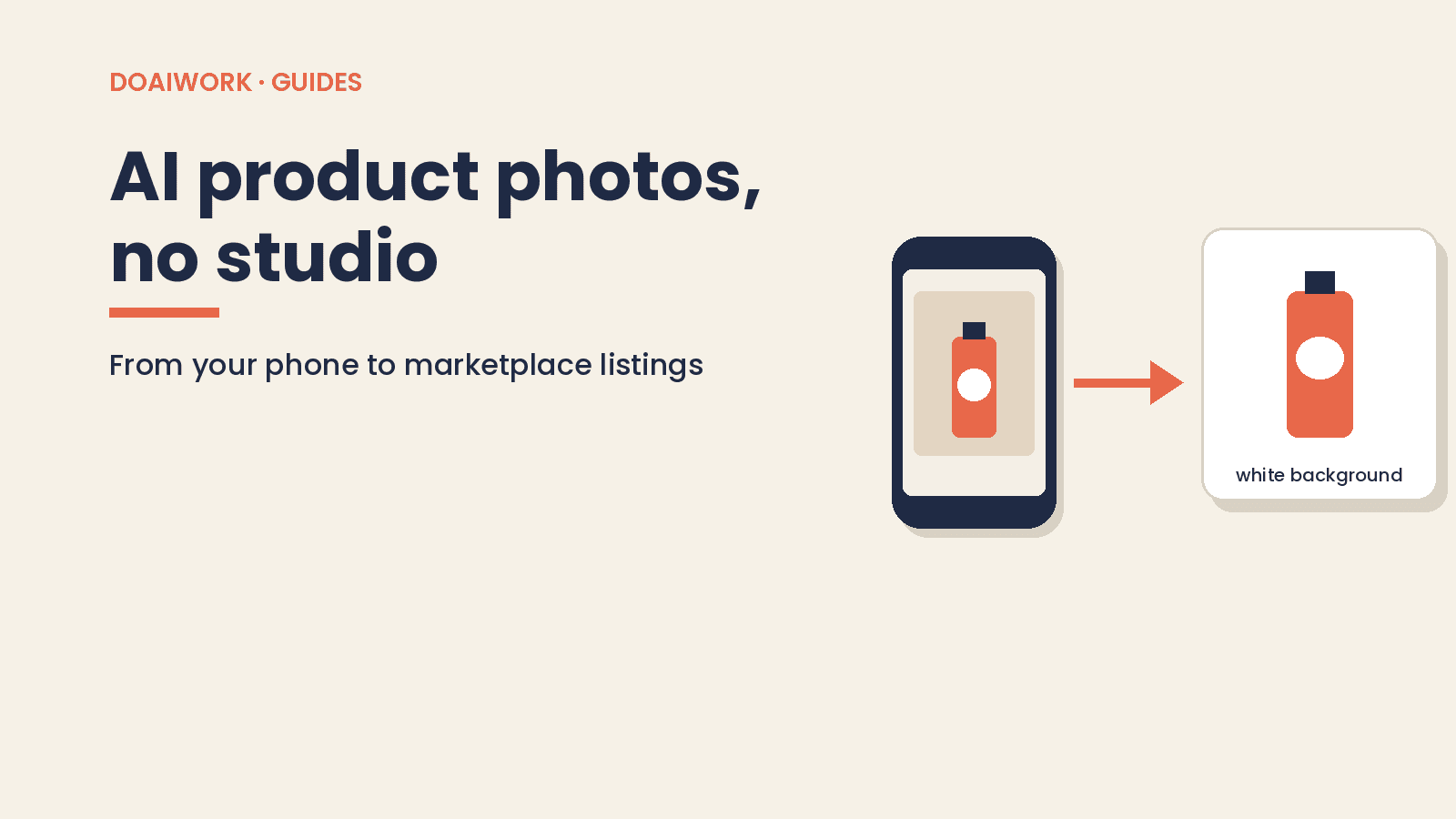
Short answer: yes — a phone and an AI photo app can give you catalog-ready product photos in an afternoon, with no studio and no photographer. It works if you follow marketplace image rules and you don't mislead: the photo has to show the real product you ship, not a prettier version the AI invented. This guide covers the full workflow, when to use Photoroom vs. Canva, and a short prompt for lifestyle backgrounds that never invents the product.
The running example is a soap brand in Austin selling on Amazon and its own Shopify site. If you also sell in Spain or Latin America, there's a Spanish edition with Amazon.es and Mercado Libre notes.
Facts checked on Oct 5, 2026 against the official pages linked below. This isn't legal or tax advice. If your category has special rules (supplements, kids' products, trademarks), check Seller Central and talk to a professional.
Main image vs. secondary images
Marketplaces treat the first photo differently from the rest:
- Main image (search thumbnail): Amazon's first image on the detail page, also shown in search. Per Amazon's Product image guide (G1881), it must accurately represent the product, show it as about 85% of the frame, use a pure white background (RGB 255, 255, 255), and show only the product (plus included accessories). Lifestyle mains are allowed only for a limited set of product types.
- Secondary / variant images: extra angles, close-ups, size context, product in use. These can be lifestyle scenes. Amazon recommends uploading at least six additional images plus a video.
Other channels (Etsy, your own site, social) are more flexible, but Amazon's main-image bar is the one that usually decides whether a listing looks trustworthy.
The 5-step workflow (with checklist)
1. Shoot with your phone (natural light, clean backdrop)
- Place the product near a window, in shade (no harsh sun).
- Use a white foam board, poster board, or a plain sheet as the backdrop.
- Turn the flash off. Lower exposure slightly if the phone overexposes whites.
- Fit the whole product in frame — no cropped caps or corners.
- Take 8–10 shots from the front and a couple of angles. Save them in a folder per SKU.
2. Remove the background
Open Photoroom or Canva, upload the best shot, and run Background Remover. Check the edge for stray hairs, stuck shadows, or board corners. If the cutout fails, reshoot with more contrast between the product and the backdrop.
3. Marketplace white background or lifestyle scene
- Amazon main image: pure white RGB 255, 255, 255; product fills most of the frame; no packaging unless it's a real product feature (gift basket, carrying case).
- Secondary images or social: lifestyle scene (wood table, bathroom shelf, kitchen counter) or a brand-color backdrop. Use the prompt below so the AI builds the scene, not a new product.
4. Size and export
- Export PNG or high-quality JPG.
- For Amazon, aim for 1,000+ pixels on the longest side (enables zoom). Amazon also lists at least 72 dpi and prefers RGB.
- Name files with the ASIN or SKU (
LAVENDER-SOAP.MAIN.jpg) so uploads stay organized.
5. Pre-upload checklist
- The photo matches the product I will ship (color, shape, quantity, included accessories).
- Main image: pure white background, no text, no pricing claims, no Amazon logos or lookalikes.
- Product is fully in frame and fills ~85% of the image.
- No mannequins, no props that aren't in the box, no unnecessary packaging.
- Secondary images add a new angle, detail, or in-use shot.
- If I used a photorealistic AI person, I added the required metadata (see below).
- My tool's license allows commercial use (Photoroom Free does not).
Photoroom vs. Canva: when to use which
Checked on Oct 5, 2026 on each vendor's official pages:
Photoroom (pricing, plan help article):
- Built for product and catalog work: background removal, AI backgrounds, product staging, virtual models.
- The Free plan exists, with low export and AI-generation limits, and does not allow commercial use. If you sell, you need a paid plan.
- Pro is listed at $7.50 per month, billed yearly. Photoroom states that VAT/GST is already included.
- Higher tiers (Max, Ultra) exist for bigger catalogs — check current limits and prices on their pricing page.
Canva (Background Remover help, pricing):
- Better for social, creatives, and branded layouts where you mix photo, type, and brand kit.
- Background Remover is on paid plans only, not Free, according to Canva Help.
- No Canva prices quoted here — see canva.com/pricing (typically Canva Pro or other paid plans).
Rule of thumb: Photoroom (or a similar product tool) for the catalog; Canva for Instagram carousels, site banners, and text-heavy graphics. If you already pay for Canva Pro, you can remove backgrounds there; if Amazon is your main channel, Photoroom is usually the shorter path.
Mistakes that cost sales (or trust)
- Using Photoroom Free commercially. Photoroom's help page is explicit: on Free, "You cannot use Photoroom for commercial use." Upgrade before you publish listings.
- An "almost white" background. Off-white or light gray shows up on the detail page and can fail Amazon's pure-white rule (RGB 255, 255, 255). Zoom to 100% and check.
- Text, logos, or pricing on the Amazon main image. Amazon's product image guide restricts text, pricing details, and Amazon logos across product images; the main image also requires the pure white background. Keep copy in the title and bullets.
- Letting AI invent the product. Changing color, adding an accessory that isn't in the box, or "fixing" a scratch is a misrepresentation. Under general FTC consumer-protection principles, don't misrepresent what the product looks like. The background can be generated; the product can't.
- Ignoring AI people. Amazon's G1881 page says that if your image includes photorealistic AI-generated people, you must add the keyword
contains-synthetic-performerto the image's XMPdc:subjectfield (using an IPTC-compatible editor) before upload. If you photograph a real person, get a proper release and don't upload their image to tools you haven't vetted for privacy.
Short prompt for a lifestyle background
Run this after you've cut out the real product. The AI only builds the scene:
Place THIS product (the cutout image I attached — do not change its shape, color, or proportions) on a light wood table by a window, soft morning natural light, bright modern kitchen background, no people, no text, no logos, no watermarks. Keep the product centered and sharp. Do not invent parts or accessories that are not in the original photo.
Swap the scene (bathroom, desk, outdoor), but keep the rule: never reinvent the product.
For the rest of your storefront stack, AI also helps with reviews and on-site chat: see reply to Google reviews with AI and add an AI chatbot to your website.
Final checklist
- Photos shot in natural light with the full product in frame.
- Background removed; main image on pure white (RGB 255, 255, 255).
- Secondary images show new angles, detail, or use — without inventing the product.
- Tool license allows commercial use (not Photoroom Free).
- No text, pricing claims, or Amazon logos on the main image.
- AI people tagged in XMP
dc:subjectwithcontains-synthetic-performerwhen required. - Files named and sized at 1,000+ px for Amazon zoom.
- I rechecked my category's image guidance in Seller Central.
Go to the sources: Amazon Product image guide (G1881), Photoroom pricing, and Canva Background Remover. More playbooks in the Guides category.
Related guides
Turn discovery call notes into a scope doc clients approve
Same-day one-page scope from your call notes: paste-ready AI prompt, out-of-scope section, and testable deliverables—you send it, not the bot.
Read guide
Follow Up on Unpaid Invoices With AI, Then Send It Yourself
Four reminders for an unpaid freelance invoice, three emails you can paste, and a Make scenario that only creates drafts. You still send them.
Read guide
Add an AI Chatbot to Your Website: Set Up Fast, Disclose Clearly
What a website chatbot can handle, a 5-step afternoon setup, a base prompt, California’s bot disclosure law, and three copy-ready AI notices.
Read guide